
Table of Contents
- Overview
- What is DNS?
- How does DNS work?
- What is AdGuard DNS?
- How to set up AdGuard
- Other options
- References
Overview
There are several ways to get rid of ads. Among them:
- Simply using the paid version of a service (if it exists). E.g.: YouTube
- Using a browser with a built-in AdBlocker like Brave or Opera
- Using a browser extension with an AdBlocker
- Blocking ads at the DNS level
Some of these options don’t work for me because:
- I don’t want to pay for services
- I don’t want to change my default browser
- The adblocker browser extensions I’ve used have been detected by services and blocked over time
So, today I’m going to talk about the option I currently use: blocking ads at the DNS level using AdGuard DNS.
What is DNS?
DNS (Domain Name System) is a system that translates domain names into IP (Internet Protocol) addresses.
When you type google.com into your browser, your computer has no idea what that means. It needs an IP address (something like 142.250.217.110) to connect. DNS handles that translation. DNS reduces the need for humans to memorize complex IP addresses (like 192.168.1.1 in IPv4, or more complex alphanumeric addresses like 2400:cb00:2048:1::c629:d7a2 in IPv6).
Think of DNS as the internet’s phone book. You know the person’s name (domain), and the phone book gives you the number (IP).
How does DNS work?
Every device on the internet is assigned an IP address, which is needed to find it on the network (like a postal address). When a user types in a site’s domain like google.com, the DNS has to translate that name into the IP address of the server hosting the page.
There are 4 types of DNS servers involved in this process:
-
Recursive DNS Resolver: The middleman between you and the other DNS servers. Usually provided by your internet provider or by services like Google (8.8.8.8) or Cloudflare (1.1.1.1). It receives your query and does all the legwork of asking the other servers.
-
Root DNS Server: The internet’s root servers. There are 13 clusters of them around the world. They don’t know the IP of google.com, but they know who manages
.com,.org,.br, etc. domains. -
TLD Name Server: TLD = Top Level Domain. This server is responsible for a specific extension (
.com,.net,.org). The.comTLD server knows which servers are responsible for each.comdomain. -
Authoritative DNS Server: The server that actually knows the IP for the domain. It’s configured by the site’s owner. Google’s authoritative server knows that
google.compoints to142.250.217.110.
Practical example: accessing google.com
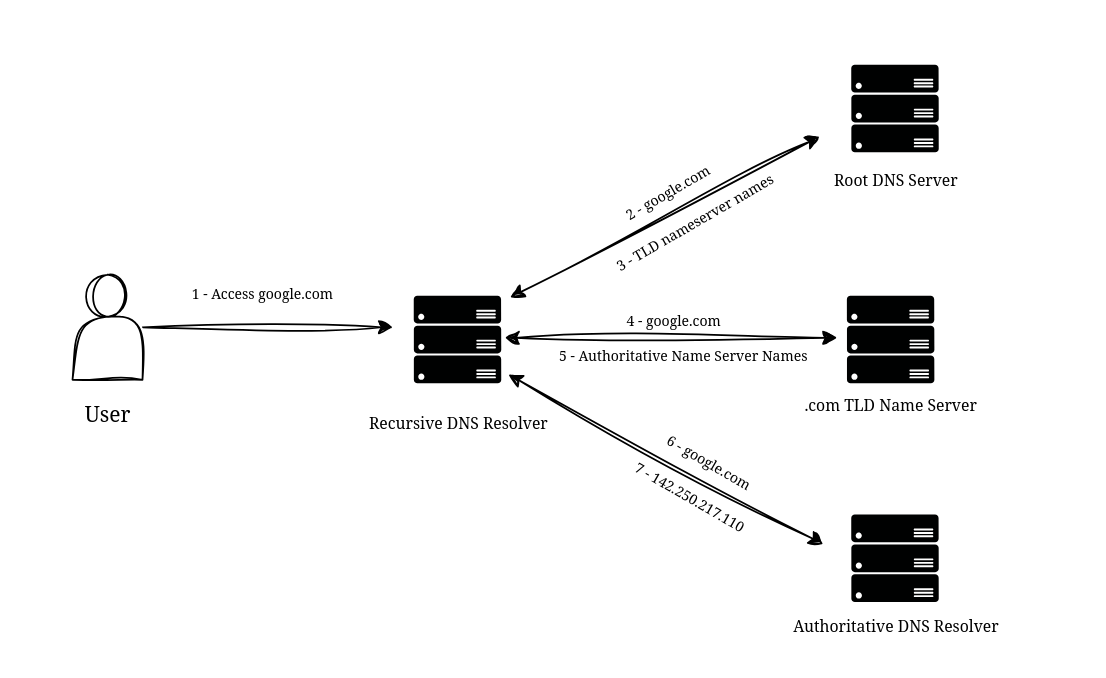
- You type
google.comin the browser. The browser asks the Recursive Resolver: “What’s the IP for google.com?” - The Recursive Resolver doesn’t know, so it asks the Root Server: “Who manages
.comdomains?” The Root Server replies with the address of the.comTLD Server. - The Recursive Resolver asks the TLD Server: “Who manages the google.com domain?” The TLD Server replies with the address of Google’s Authoritative Server (
ns1.google.com). - The Recursive Resolver asks the Authoritative Server: “What’s the IP for google.com?” The Authoritative Server replies:
142.250.217.110. - The Recursive Resolver hands the IP back to the browser, which finally connects to the server.
This whole process happens in milliseconds. The Recursive Resolver caches the response for a period of time (defined by the TTL - Time To Live), so the next time you access google.com, it already knows the IP without having to ask again.
What is AdGuard DNS?
AdGuard DNS is a DNS service that, in addition to the normal domain-to-IP translation, also blocks known advertising and tracking domains.
When you try to access ads.google.com (an ad domain), for example, AdGuard DNS responds with an invalid IP or simply doesn’t respond at all. Result: the ad doesn’t load.
The advantage of AdGuard over other solutions (like browser extensions) is that it works at the network level. This means:
- It works in any app, not just the browser
- It works on devices that don’t support extensions (smart TVs, phones, apps)
- It can’t be detected by sites that block AdBlockers (since the domain simply doesn’t resolve)
So, if we use AdGuard as the default DNS on our devices, ad domains on its pre-built blocklist will be blocked.
Will all ads be blocked?
No. DNS-level blocking only works when the ad comes from a different domain than the site you’re visiting.
Example of an ad that will be blocked:
You visit youtube.com and the site tries to load an ad from ads.doubleclick.net. AdGuard DNS blocks the resolution of ads.doubleclick.net, so the ad doesn’t load.
Example of an ad that will NOT be blocked:
Some sites serve ads from their own domain. If site.com serves ads from site.com/ads/banner.jpg, DNS can’t distinguish that from the site’s normal content. Blocking site.com would block the entire site.
In practice, most ads come from external domains (Google Ads, Facebook Ads, ad networks), so DNS-level blocking works well for everyday use. But don’t expect 100% coverage.
How to set up AdGuard
Setting up on devices
On Android:
- Go to Settings → Network & Internet → Private DNS
- Select “Private DNS provider hostname”
- Enter:
dns.adguard.com
On iPhone/iPad:
- Download the AdGuard app from the App Store (the free version works for DNS)
- Or configure it manually in Settings → Wi-Fi → select your network → Configure DNS → Manual
- Add:
94.140.14.14and94.140.15.15(AdGuard’s IPs)
On Windows:
- Control Panel → Network and Sharing Center → Change adapter settings
- Right-click your connection → Properties
- Select “Internet Protocol Version 4 (TCP/IPv4)” → Properties
- Select “Use the following DNS server addresses”
- Preferred DNS:
94.140.14.14 - Alternate DNS:
94.140.15.15
On Linux:
Edit /etc/resolv.conf or configure via NetworkManager:
nameserver 94.140.14.14nameserver 94.140.15.15Setting up on the router
Setting it up on the router is the most practical option because every device connected to your network will automatically use AdGuard DNS, without needing to configure each one individually.
The process varies by router model, but generally:
- Access your router’s interface (usually
192.168.0.1or192.168.1.1in the browser) - Look for DHCP or DNS settings
- Replace the DNS servers with AdGuard’s:
- Primary DNS:
94.140.14.14 - Secondary DNS:
94.140.15.15
- Primary DNS:
- Save and restart the router
After that, every device in your home (phones, TVs, laptops) will block ads without any individual configuration needed.
Other options
Besides AdGuard DNS, there are other solutions:
- Pi-hole: A DNS server you host on your own network (usually on a Raspberry Pi). More control, but requires maintenance.
- NextDNS: Similar to AdGuard, lets you customize block lists.
- Cloudflare 1.1.1.1 with filters: Offers malware and adult content filtering, but doesn’t block ads by default.
For most people, AdGuard DNS is more than enough. Pi-hole is interesting if you want more control or already have a Raspberry Pi lying around.